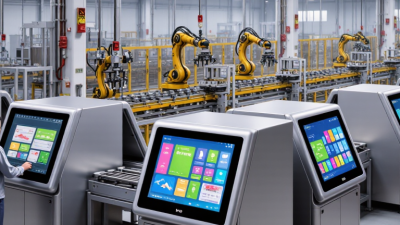
How to Choose the Right HMI Panel?
Choosing the right HMI panel is not just a screen-size decision. It affects how quickly operators understand a process, respond to alarms, and recover from interruptions. A panel that looks impressive in a catalog may be difficult to read under factory lighting. Small buttons can frustrate gloved hands. A bright display can still wash out beside a sunlit window. Details matter.
Usability expert Jakob Nielsen writes, “The system should speak the users’ language, with words, phrases and concepts familiar to the user, rather than system-oriented terms.” That principle applies directly to an HMI panel: clear labels and familiar workflows help reduce hesitation. But usability alone is not enough. Buyers also need to consider screen size, resolution, touch technology, environmental ratings, operating temperature, connectivity, software compatibility, and long-term support. A panel installed near washdown equipment faces different demands from one mounted inside a clean control cabinet. The right choice starts with the actual site, not a generic specification sheet.
This guide explains how to compare those requirements and ask suppliers more useful questions. It also considers installation, maintenance, and the total cost of ownership. There is no perfect panel for every application. Even experienced teams can overlook small constraints, such as viewing distance or limited cabinet depth. Those misses are worth checking early.
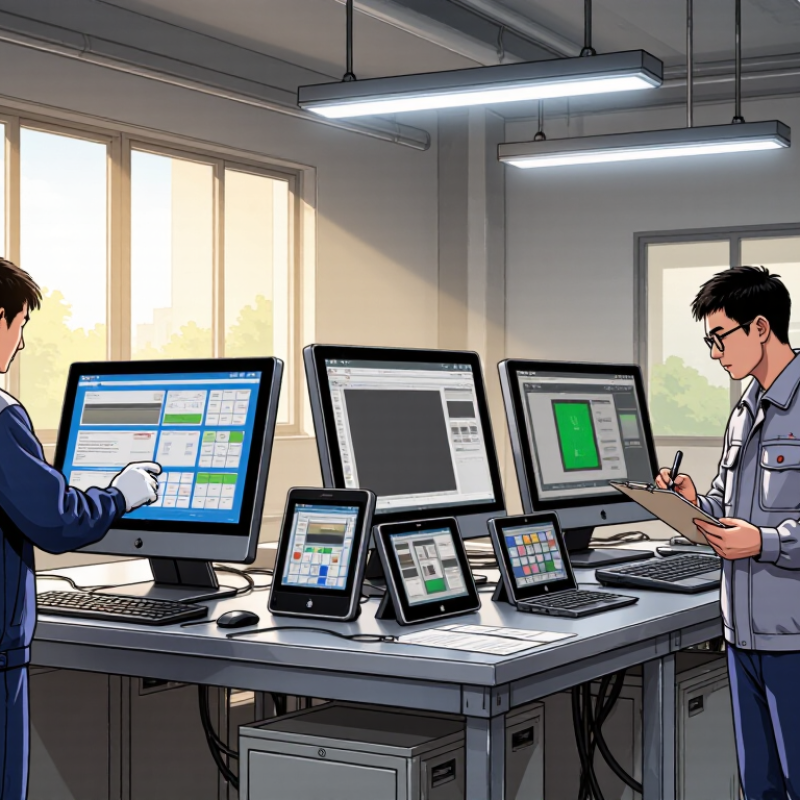
Identify the Application and Operator Requirements
Choosing an HMI panel starts with the task, not the screen size. Map what operators must see, enter, and confirm during a normal shift. A packaging line may need clear status indicators and quick fault recovery; a water-treatment station may prioritize trends and alarm history. Small details matter. Note how often operators wear gloves, stand at an angle, or work in bright light.
Check the installation conditions before comparing specifications. Record ambient temperature, humidity, dust exposure, vibration, and available mounting space. Then define the interface: required languages, viewing distance, touch accuracy, and the number of screens operators can navigate safely.
Ask operators to walk through real tasks, including an alarm response. Their feedback can reveal confusing labels or steps that look obvious on paper. Not always. Also confirm how the panel must exchange data with controllers and other equipment, and whether maintenance staff can support that setup.
A requirement list can still miss things; I would revisit it after observing a full shift, especially when rare faults occur.
Compare Screen Size, Resolution, and Touchscreen Options
Choosing an HMI panel starts with the operator’s viewing position, not simply the largest screen that fits the cabinet. From arm’s length, a 7-inch display may show key process values clearly, while a dense overview needs more space. Check viewing distance, mounting angle, and whether operators read the screen while standing or moving. Not always better.
Resolution affects how clearly the panel shows trend lines, alarm text, and detailed graphics. More pixels can help, but only if labels and controls remain readable at the chosen screen size. Compare sample pages at the intended viewing distance. Check contrast under actual site lighting, too; reflections can make a crisp display difficult to read.
Touchscreen choice depends on the work area and operator habits. Resistive screens can suit gloved use, while capacitive screens often respond well to light finger contact; performance varies by panel and glove type. Test the actual gloves, expected cleaning routine, and touch targets before deciding. A few awkward taps during a trial are easy to dismiss, but repeated misses can slow routine work.
How to Choose the Right HMI Panel? - Compare Screen Size, Resolution, and Touchscreen Options
| Typical Screen Size | Example Resolution | Common Aspect Ratio | Typical Touchscreen Options | Best Suited For | Selection Considerations |
|---|---|---|---|---|---|
| 4.3 inches | 480 × 272 pixels | Widescreen (approximately 16:9) | Resistive or projected capacitive, depending on model | Compact machines, basic status displays, and simple operator controls | Space-efficient, but provides limited room for detailed graphics, long text, or many controls. |
| 7 inches | 800 × 480 pixels | Widescreen (approximately 15:9) | Resistive or projected capacitive, depending on model | Small machine interfaces with a few screens, controls, and process values | A common balance of panel size and usable screen area; check that buttons and text remain readable at the intended viewing distance. |
| 10.1 inches | 1024 × 600 pixels | Widescreen (approximately 16:9) | Projected capacitive or resistive, depending on model | General-purpose machine operation, process monitoring, and moderately detailed graphics | Offers more room for grouped controls and trends; confirm cutout dimensions and available mounting depth. |
| 12.1 inches | 1280 × 800 pixels | Widescreen (16:10) | Projected capacitive or resistive, depending on model | Interfaces with multiple process areas, data views, or more detailed equipment diagrams | Higher resolution can fit more information, but does not automatically make small text easier to read; consider scaling and operator distance. |
| 15.6 inches | 1920 × 1080 pixels | Widescreen (16:9) | Usually projected capacitive; other touch options may be available | Large machine dashboards, complex process views, and interfaces requiring substantial screen space | Requires more panel space and may need careful UI scaling. Check viewing angle, glare, enclosure requirements, and installation clearance. |
Touchscreen guidance: Resistive touch commonly works with a gloved finger or stylus and responds to pressure. Projected capacitive touch supports gestures on many models, but glove, moisture, and surface compatibility vary. Screen sizes and resolutions shown are common examples, not universal specifications; verify the exact product data and environmental ratings before selection.
Verify Compatibility with Controllers and Communication Networks
Before selecting an HMI panel, confirm that its driver supports the controller’s exact model, firmware, and protocol. “Ethernet” alone is not enough. Check whether the system uses EtherNet/IP, PROFINET, Modbus TCP, or another protocol, and verify required settings such as IP addressing and port configuration. For serial links, match the interface, wiring, baud rate, parity, and termination. Small mismatches can leave a panel powered but unable to exchange data.
Network trends make protocol checks more important, not less. The 2024 Industrial Network Market Shares report estimated that industrial Ethernet represented 71% of newly installed network nodes, fieldbus 22%, and wireless 7%. These figures describe new installations, not every factory floor. Many plants still run older controllers alongside newer Ethernet equipment. A panel should support the actual network in front of you, including any gateway or protocol converter required.
Test the connection before installation. Read a live controller tag, change a value, and confirm that alarms and timestamps behave as expected. Check the panel’s supported connection count and update rate against the application; too many fast-moving tags can slow refreshes. A common oversight is assuming a successful ping proves protocol compatibility. It does not. Even a careful checklist can miss an unusual firmware revision, so record tested settings and keep a fallback plan.
How to Choose the Right HMI Panel: Verify Controller and Network Compatibility
Nominal signaling rates provide context, but they do not confirm compatibility. Check that the HMI and controller support the same protocol and physical interface, then verify connector, addressing, baud rate, and other communication settings. Actual throughput depends on the network configuration and conditions; classic CAN’s maximum rate also depends on bus length.
Assess Environmental Conditions, Safety, and Durability
Choosing an HMI panel starts with the conditions around the machine, not just screen size. Check the expected temperature range, humidity, dust, oil mist, and vibration. Heat changes everything. A panel beside a hot motor may need different protection than one in a clean control room. Sunlight can make a display hard to read, while condensation can threaten connectors after a cold start. Review the panel’s specified limits and the enclosure design together; an ingress rating alone does not describe every installation.
Safety depends on how people use the screen. Consider whether operators wear gloves, approach from an angle, or need to read alarms under strong lighting. Place controls where users can reach them without leaning across moving equipment. A standard HMI should not be treated as a substitute for dedicated safety controls. The required setup depends on a site-specific risk assessment. Small details matter. For example, cleaning chemicals can damage a surface coating even when dust and water are controlled.
Durability also means surviving repeated use and remaining serviceable. Estimate daily touch frequency, exposure to cleaning, and likely impact from tools or doors. Check mounting rigidity, connector strain relief, and access for inspection. These are easy to miss during selection. A thicker protective cover may resist damage, but it can reduce touch sensitivity or visibility. That trade-off deserves a real test with the intended gloves, lighting, and cleaning routine. No specification sheet can fully reproduce the installation.
Compare Total Cost, Support, and Future Expansion Needs
An HMI panel’s purchase price is only one part of its cost. Include engineering time, cables, software licenses, spare units, operator training, and service visits. A low-cost panel can become expensive if a failed screen stops a production line or requires custom integration. The U.S. Department of Energy’s Operations & Maintenance Best Practices Guide reports that predictive maintenance can save 8–12% compared with preventive maintenance, while reactive maintenance may cost three to five times more. These are maintenance estimates, not HMI-specific forecasts. Still, they underline the value of accessible diagnostics, available replacement parts, and responsive technical support. Downtime adds up.
Check what support actually covers: response hours, remote troubleshooting, repair turnaround, and how long firmware updates remain available. Ask for lifecycle costs over your expected service period, not just a first-year quote. One detail I would not gloss over is migration labor. Rebuilding screens and retesting alarms can take longer than the panel swap itself. Plan for change.
For future expansion, list likely additions now: more operator stations, extra data points, network connections, or larger screens. Confirm spare ports, memory capacity, protocol compatibility, and mounting dimensions. A panel that fits today may not fit the next process upgrade. Yet buying maximum capacity “just in case” can waste budget; expansion plans are often less certain than sales estimates suggest. Record assumptions, then compare options against realistic scenarios.
Related Posts
-
What Are the Top HMI Panel Suppliers in China?
-
Top 10 HMI Panel Features You Must Know for Optimal Performance
-
2026 How to Choose HMI Solutions for Global Sourcing?
-
7 HMI Programming Tips for Beginners
-

2026 Top HMI Solutions for Enhanced User Experience?
-
2026 Best Control Systems Engineering Techniques and Tools?